Most of us are now aware that Windows 10 is here to stay – forever. There won’t be a Windows 11, just incremental updates and upgrades to Windows 10.
Twice a year Microsoft bring out a new “Build” of Windows 10, which can be thought of as a reasonably major upgrade, as opposed to a monthly update. The latest upgrade was released last week.

They were using a naming system of yymm – year and month. So the previous upgrade, released in April 2020, was known as 2004, which was confusing as Windows 10 isn’t 16 years old! So they have changed the system and named the latest new version 20H2, standing for the 2nd Half of 2020. Clear?
Should you upgrade? Yes, you should always install Windows patches, updates, upgrades, new versions, call them what you will. They tend to feature important security updates as well as tweaks to the look of Windows 10.
Should you upgrade now? No, probably not.
Let everyone else do that first, to find the bugs, which Microsoft can then iron out. It is fairly common for Windows updates to damage the existing Windows installation. Indeed, I was called out just this week to a laptop showing the dreaded Blue Screen of Death, by the Head Teacher of a London school who was in Northumberland on holiday. It was quickly repaired and the day was saved, but it was very annoying for her.
Having said that, her school has IT Support and yet the laptop hadn’t seen any updates for some time. The laptop’s attempt at automatically updating Windows, when many older “drivers” existed, was always going to end in trouble. You should update Windows as well as the “drivers” regularly. If you’re unsure how to do this just call 01670 432 324 for free advice. (And no, Windows doesn’t always do all of this automatically.)
So, how do you get 20H2 and what do you get with this latest Build of Windows 10?
Click the Windows Logo key on your keyboard and the “i” key together, to bring up the Settings page. Click the “Update & Security” icon to get to the Windows Update page. Across on the right hand side click the “OS Build Info” link.
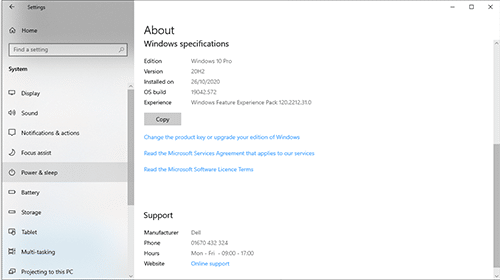
This shows you what “Edition” of Windows 10 you have, as well as the “Version”. You really want your Version to be 2004 (released in April 2020) or 20H2 (Oct 2020).
If you return to the “Update & Security” page you may see a list of waiting updates. You should install these. If Microsoft has rolled out 20H2 for your computer it will be installed after you click “Download and Install”. But be warned, this can take quite some time – maybe a couple of hours or more!
If you see an “Optional Updates” button it is usually recommended to install these also. It is probable that these are mostly driver updates, which are equally important.
You may not notice any changes with the 20H2 upgrade. It removes the “System” icon from the Control Panel as all of the information can be found in Settings. Most users don’t access the Control Panel anyway. It will be phased out altogether over time, with all functions being accessed via Settings.
Microsoft Edge, their new internet browser, may be installed onto your PC. Or, this may have happened some time ago as they have been pushing it since January. Either way you won’t be able to avoid knowing about it! It’s very similar to Google Chrome, as it is built using the same code.
It will be easier to link your Samsung phone to your Windows PC through the “Your Phone” app. This allows you to run any apps on the phone through the PC too. (You need to install the “Your Phone Companion” app on your phone too.) My own testing showed this to be clunky and not yet worthwhile.
The Start Menu will get a cleaner look, with slightly different icons. There are a few other tweaks and minor changes, but nothing to worry anyone too much.
If you are at all unsure, just call us on 01670 432 324 for advice!